01
What the OPUS-QUAD is & the layout
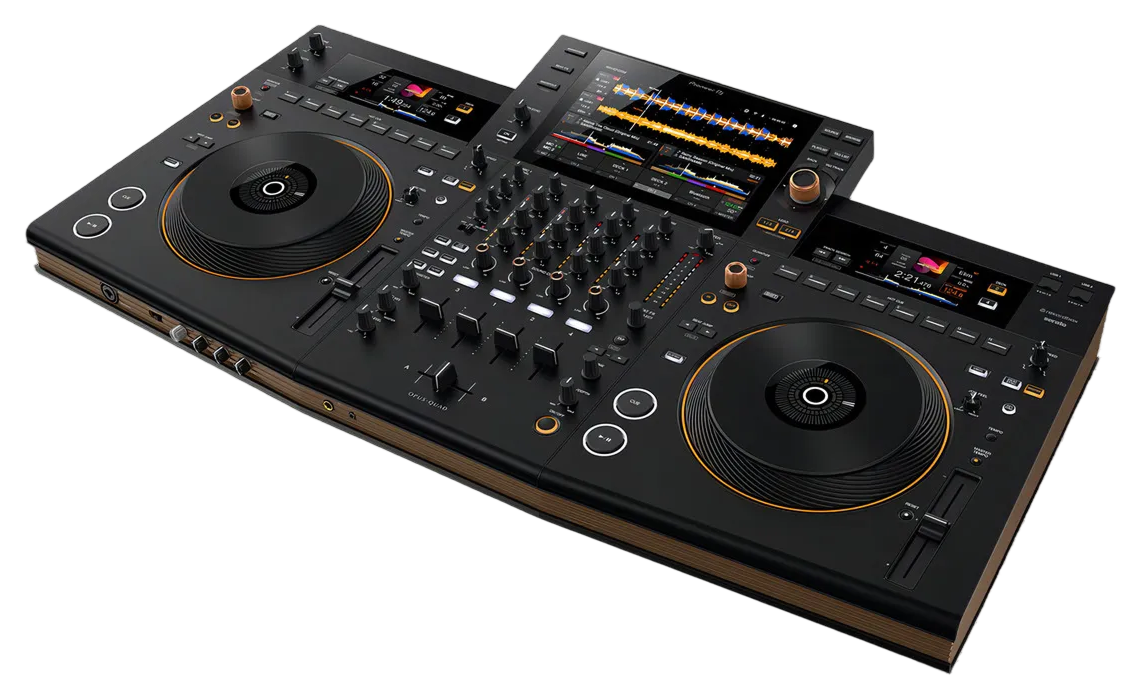
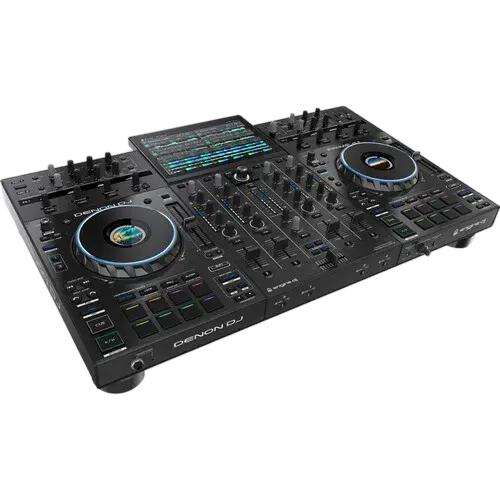
The OPUS-QUAD is AlphaTheta's flagship all-in-one — think of a pair of CDJ players and a DJM mixer melted into one sculpted unit, with a big 10.1-inch touchscreen in the middle. Crucially it's standalone: it plays straight from a USB stick, an SD card, your rekordbox cloud library or a streaming service, so you can show up with nothing but the unit and your headphones. It's aimed at the working mobile DJ who wants club-grade sound and looks without hauling a rack of gear.
Four decks is the headline. Most of the time you'll perform on two, but the OPUS lets you layer up to four tracks — an a cappella over a beat over a loop — which opens up creative sets a normal two-deck setup can't.
The layout splits into clear zones: the touchscreen and the Smart Rotary Selector in the centre for finding music; a deck on each side (jog wheel, transport, hot cues, loop and tempo); and the four-channel mixer down the middle with the EQ, faders, crossfader and effects. Learn those zones once and everything that follows is just using them with intent.
02
Find music fast: browsing, Touch Preview & sources
Great sets are won in the browser, and the OPUS makes finding music quick. The Smart Rotary Selector is the joystick-style knob in the centre: rotate it to scroll, press to load, and tilt it to move between folders, playlists and the track list without taking your eyes off the floor. Track Filter narrows a huge library instantly by BPM, key, rating or colour, so the right track is a couple of moves away.
The feature that changes how you play is Touch Preview. Touch a track's waveform on the screen and you hear it in your headphones, from that exact point, without loading it onto a deck. That means you can audition your next track while the current one plays out to the crowd — no more loading blind and hoping it fits. Combine that with Needle Search, where you drag along the waveform to jump anywhere in a track, and you can find the perfect drop or breakdown in seconds. And because it reads USB, SD, your rekordbox cloud and streaming services, your whole collection travels with you.
03
Play & control: jog, tempo, key and four decks
Playback starts with Cue and Play. Set a cue point while paused, and during playback Cue snaps you back to it — your reliable launch position. The jog wheel works in two modes: with Vinyl on, touch the top to scratch; with it off, the outer edge bends the pitch to nudge two tracks into time. Two controls tune the feel — Jog Adjust changes how heavy the platter feels, and Vinyl Speed Adjust sets how quickly the track stops and starts, from an instant cut to a slow turntable brake.
The Tempo fader changes speed, the range button sets how fine or wide that change is, and Master Tempo keeps the musical pitch steady so faster doesn't mean squeaky vocals — Tempo Reset returns to the original speed in one press. Key Sync shifts the current track into the key of another for clean, consonant blends.
And remember it's a four-deck instrument: the Deck Select buttons let each side control a second deck, so you can keep a loop or a vocal running on deck 3 or 4 while you mix decks 1 and 2 — the foundation of richer, layered sets.
04
Mix it: EQ, Sound Color FX, Smart CFX & Smart Fader
The OPUS has a real club mixer, and the core blend is the same one pros use everywhere: the bass swap. Two tracks both carrying bass turn to mud, so before you bring a new track in, cut its LOW EQ to zero, raise its channel fader so its highs and mids ride on top, then — at the moment of the switch — pull the bass out of the old track and push it into the new one together. The low end hands over cleanly and the transition feels seamless.
Each channel's Sound Color FX knob adds instant character — a filter, noise or a dub echo — with a single twist; a slow filter sweep is a classic way to build or release tension. Two assist features are worth knowing: Smart CFX applies a tasteful, musical effect with one touch, and the Smart Fader auto-blends tempo and EQ as you move the crossfader, keeping a transition beatmatched while you focus on timing. Lean on them when you're learning or when a mobile gig gets hectic, then take the controls back by hand as your confidence grows.
05
Cues, loops, beat jump & slip
This is where you stop just blending and start performing. The eight Hot Cue buttons (A to H) store your favourite moments — a drop, a vocal, an intro — so you can launch from any of them with a tap, rearrange a track live, or recover instantly. Save them ahead of time and a track becomes putty in your hands.
Loops keep a section going: use the Beat Loop control to drop a perfectly-timed auto loop and turn it to halve or double the length, or set Loop In and Loop Out by hand for a custom section — great for stretching an intro while you set up the next track, or building tension before a drop. Beat Jump moves you forward or back by a set number of beats (from a fraction of a beat up to many bars) for quick on-the-fly edits. Slip Reverse throws the track into reverse for a moment and then snaps back in time, as if it never left. Quantize ties all of this to the beat-grid so your cues and loops always land in time, even when your timing isn't perfect yet.
06
Beat FX, harmonic mixing & playing a real set
Beat FX are the tempo-synced effects — echo, reverb, flanger and more — applied to a channel and locked to the beat. Pick an effect, set how many beats it spans, and ride its depth: a short echo as a track ends is a smooth, professional way out of a blend. The rule, as always, is restraint — one effect used with timing beats a pile of effects used at once.
Mixing in key is what separates pleasant sets from magical ones. Tracks in compatible keys blend without clashing; Key Sync does the shift for you, and once your ears learn the sound you'll seek it out on purpose. For a real OPUS set, lean into its strengths: prepare your cue points and a tight playlist, use Touch Preview to line up the next track early, use the four decks to layer a vocal or a percussion loop for a signature moment, and record the set so you can review and improve. The OPUS-QUAD gives you a whole club in one box — your job is taste, timing and preparation, and this guide has set you up for all three.